



As your business grows, so does the complexity of your data! HubSpot, the customer relationship management (CRM) platform, makes it easy to organize customer interactions, track sales, and measure marketing performance with surface-level metrics like email open rates, lead conversion percentages, and deal progress.
What happens when you need to dig deeper—like identifying which marketing campaigns drive the highest customer lifetime value, forecasting future sales trends, or analyzing customer retention across products?
That’s where Google BigQuery, a cloud-based data warehouse, comes in. BigQuery allows you to process large datasets, perform advanced analyses, and uncover insights that go far beyond standard CRM reporting.
Why integrate HubSpot with BigQuery?

Centralize data across platforms
HubSpot is excellent for managing CRM-specific data, but businesses often use multiple tools, creating silos of information. By integrating with BigQuery, you can centralize all your data, from HubSpot contacts and deals to website analytics and financial metrics, into one system.
Example use case:
A retail business combines HubSpot’s lead data with inventory information from a separate ERP system. Using BigQuery, they identify which promotional campaigns led to inventory shortages, helping them improve demand forecasting.
Unlock deeper insights
HubSpot provides valuable insights into your sales and marketing performance, but these reports are limited to predefined templates. BigQuery enables businesses to customize analytics and uncover insights specific to their goals.
Example use case:
A subscription service uses BigQuery to analyze customer churn rates by combining HubSpot’s deal data with customer support interactions. They discover that customers with unresolved tickets are twice as likely to cancel, prompting them to improve their support processes.
Read how OPTI used Google BigQuery for a multiplayer game with hundreds of thousands of players
Enable predictive analytics
HubSpot focuses on real-time and historical data, but BigQuery opens the door to predictive analytics. Businesses can forecast trends and anticipate challenges before they arise.
Example use case:
A software company uses BigQuery ML to predict which leads in HubSpot’s CRM are most likely to convert, allowing the sales team to prioritize high-value opportunities.
Build custom dashboards for decision-making

While HubSpot’s dashboards are great for quick overviews, they lack the flexibility for advanced reporting. BigQuery allows you to create custom dashboards in tools like Looker Studio, combining data from HubSpot and other sources.
Example use case:
A marketing team builds a dashboard that visualizes revenue attribution across email campaigns, social ads, and SEO efforts, helping them allocate budgets more effectively.
Discover how OPTI unified an analytic dashboard for a gaming company
Scale without limits
HubSpot’s reporting capabilities are tailored for CRM data, but they may struggle to handle massive datasets as your business grows. BigQuery is built to scale seamlessly, allowing you to analyze millions of rows of data without slowing down.
Example use case:
An international logistics company uses BigQuery to analyze shipping data alongside HubSpot deal information, identifying inefficiencies in specific regions that lead to delays in closing deals.
Integration guide (native HubSpot integration - currently in beta)
Setting up an integration between HubSpot and BigQuery is straightforward if you have OpHub Enterprise. Follow these steps:
Step 1: Install Google BigQuery from the HubSpot App Marketplace
- Open both your HubSpot account and Google BigQuery account in separate browser tabs for convenience.
- Ensure your HubSpot account is enrolled in the public beta for this feature. To opt-in, follow these instructions.
- Navigate to the HubSpot App Marketplace.
- Search for "Google BigQuery" and select the app.
- Click the Install App button.
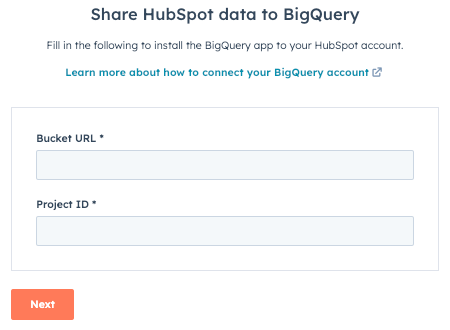
- Enter your Bucket URI and Project ID when prompted, then click Next.
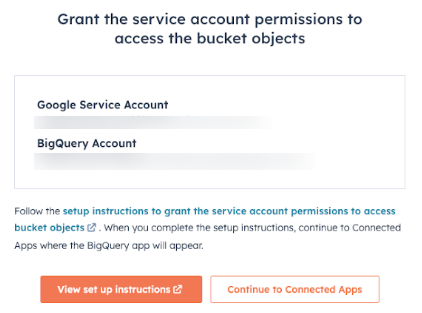
- Review the generated Google Service Account and BigQuery details. Save this information for use in later steps.
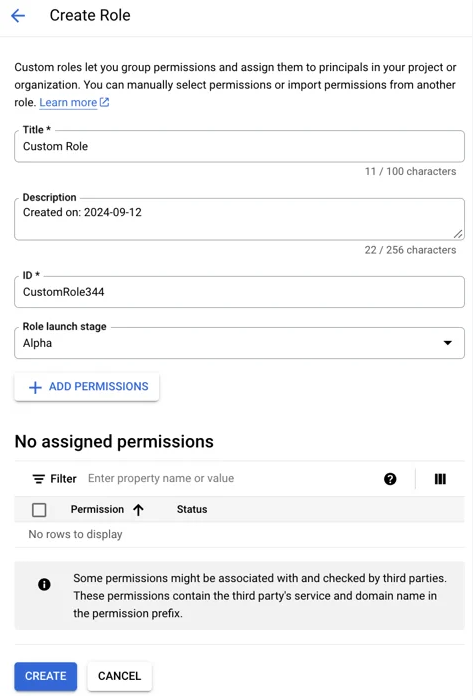
Step 2: Create a custom IAM role in Google Cloud Platform
- Log into your Google Cloud Console.
- From the navigation menu, go to IAM & Admin > Roles.
- Click on Create Role at the top of the screen.
- Add a title, optional description, and a unique ID for the role.
- Select Add Permissions and include the following:
- bigquery.datasets.create
- bigquery.datasets.get
- bigquery.jobs.create
- bigquery.tables.create
- bigquery.tables.update
- bigquery.tables.get
- storage.objects.get
- storage.objects.create
- Once all permissions are added, click Create to save the role.
Step 3: Assign the custom IAM role to the Google Service Account
- In the Google Cloud Console, go to Cloud Storage > Buckets.
- Select the bucket associated with your project.
- Open the Permissions tab and click Grant Access.
- In the New Principals field, enter the Google Service Account name generated earlier.
- Under Assign Roles, choose the custom IAM role you created in Step 2.
- Click Save to confirm the changes.
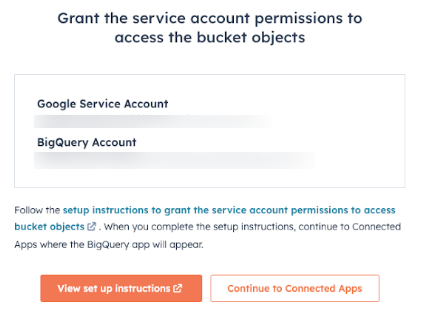
Step 4: Grant permissions to the HubSpot-generated BigQuery account
- Navigate to IAM & Admin > IAM in your Google Cloud Console.
- Click Grant Access.
- In the New Principals field, add the Google Services Account name from step 2..
- Assign the custom IAM role from Step 2 to this account.
- Save your settings to finalize the permissions.
Step 5: Finalize setup in HubSpot
- Return to your HubSpot account and go to Connected Apps.
- Follow the prompts to complete the integration setup.
- In the final dialog, review the permissions, check the required boxes, and click Allow and Install to activate the integration.
Contact us for more info!
The integration of HubSpot and Google BigQuery is a powerful step toward unlocking the full potential of your data.
OPTI is both a Hubspot Solution Provider and a Google Cloud Partner. Find us here
Start your integration today and take your analytics to the next level.