



Today's digitalization leads us to connect and stay in touch with others from different parts of the Earth, no matter the distance. It is much easier nowadays to trade information or to search for what you are interested in. With a good internet connection and device, you can visit any location you dream of, buy what products you love, or be informed of the world's changes.
When accessing a website, you look for the ones that can show the information in your native language or in a language you can understand. If this option is unavailable for the website you visit, your interest will be lower, and you will close the page and never open it again.
As a company, when reaching the level of becoming international, it is crucial for you to have your website capable of being available in multiple languages. Therefore, you can increase your customers' engagement and attract new ones. The easier it is for your website to be accessible, the more customers you can have. Of course, it also depends on the content, but having a multi-language option is more beneficial for your company.
Multi-language website Advantages
Amongst the advantages that this option can offer you, we can think of the following:
- Better customer engagement.
By reaching out to more potential clients online and making it easier to navigate through the website, you will engage your clients and connect them to your brand. They will appreciate your effort to be closer to them and offer them personalized content. - Increase brand awareness by being available in more languages.
You will have worldwide clients and become more known through word-to-mouth. Your clients will feel a real connection to your brand, and they will promote it to their closest friends. “Speaking” their language shows them that you care about them and put their needs at the center of your business. - Search engine expansion.
Some countries have their personalized search engine, and your website will be easier to find if you have a multi-language website (of course, translated into their language). - Improved SEO for each country or region you set your website for.
A multi-language website helps you improve your SEO for each region or country. If your target is to be visible to more customers, you must adapt your website pages to the local content. - Avoid being flagged for duplicate content.
This way, you will enable Google or other search engines to identify different versions of your website pages. You can add hreflang tags and manage your web pages in different languages using HubSpot.
What are hreflang tags?
Hreflang tags are a handy tool that helps you manage which page and translation of it should be presented in which country or region. If you have a website in different languages, when using a search engine, you need to ensure that the results shown are the right ones for the country where the search is taking place.
If you need to set this, search engines may choose to show the pages with the best SEO, regardless of the country or region. Therefore, your website may be less than the top results shown after a search.
Translate your website pages
When opening a business, generally, you start with a local website in the native language of the country where it is opened. After becoming international, you identify the need to translate your website content into multiple languages. This way, you will fully profit from all the benefits of going further off the country's borders.
Using the HubSpot platform and its' tools, you can add a language switcher module to the page's template, allowing your visitors to select their preferred language.
Please note that there is no automatic page translation available option. You need to translate the content and upload it for each language page you select for your website.
To create a multi-language variation of a page, we invite you to follow the next steps:
-
Navigate to your content:
- In your HubSpot account, go to Marketing → Website → Website Pages.
- In your HubSpot account, navigate to Marketing → Landing Pages.
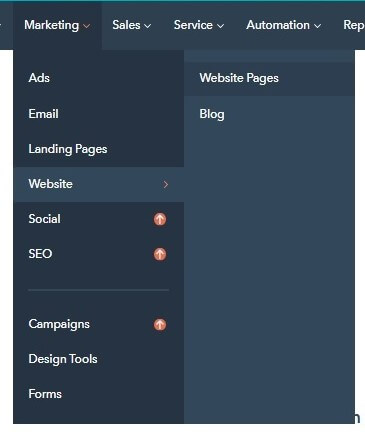
- Select a page, click the More dropdown menu, and select Create multi-language variation.
- In the dialog box shown, click the Variation language dropdown menu and select the language you want.
- Click Create.
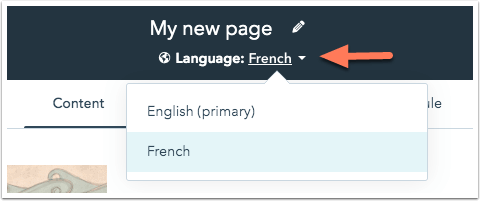
After this, you will have created a clone of your existing page in the selected language. - In the content editor, you can now create the page content in your selected language. To switch between languages, click the Language dropdown menu at the top of the page and select an option.
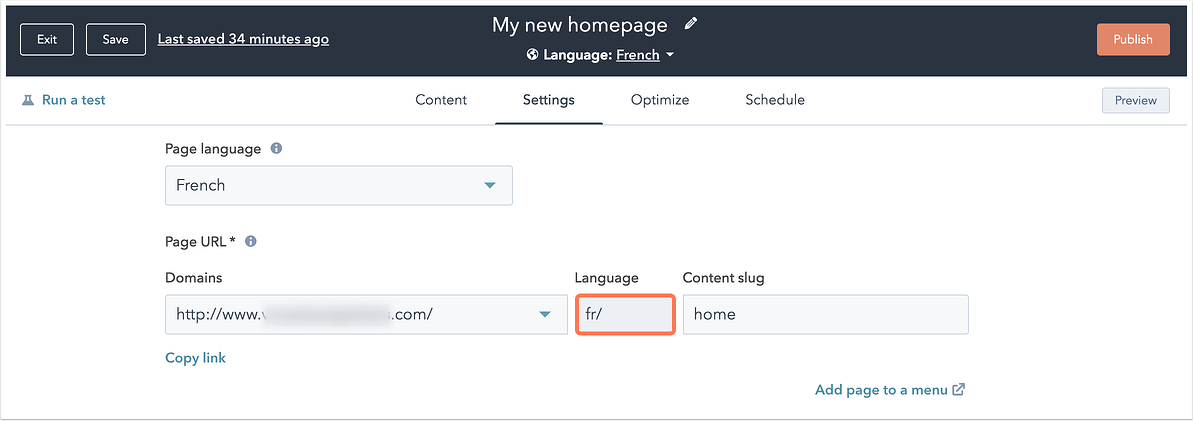
- Go to the Settings tab.
- Click the Page language dropdown and select the language you want. This will automatically update the language slug in the Language field of the page URL.
Language switcher module
When having a multiple-languages website, it is essential to add a language switcher for your visitors to change the translation version of a page. This module is available only if a page has different translated versions published.
You need to follow the next steps to add a language switcher:
-
Navigate to your content:
- In your HubSpot account, go to Marketing → Website → Website Pages.
- In your HubSpot account, navigate to Marketing → Landing Pages.
- Select a page and click the Edit option.
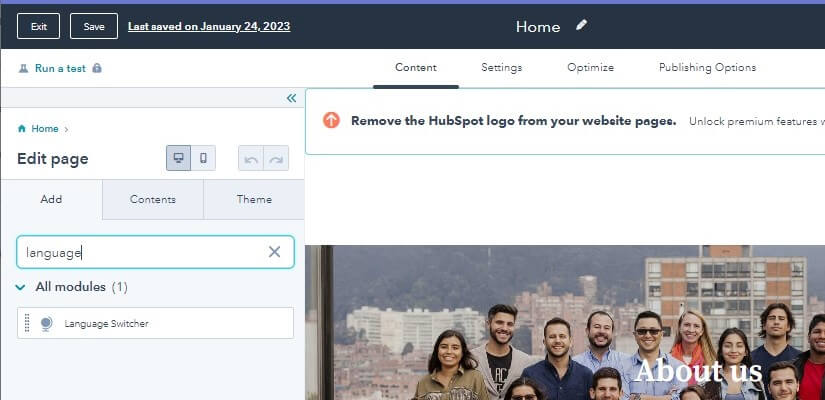
- In the sidebar editor, you can see a search bar in the sub-tab Add. Type language switcher.
- Select with your mouse Language Switcher module and drag it onto the page. Usually, this module is positioned within the header of the page. But you can place it where you want.
-
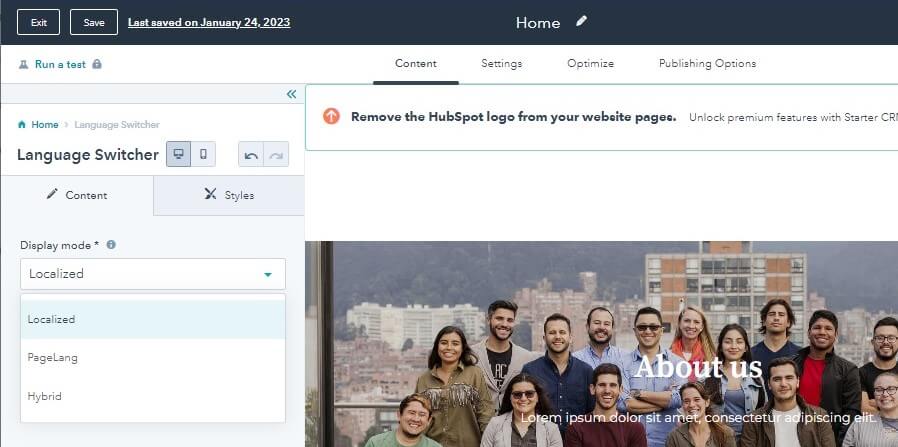
In the sidebar editor, click the Display mode dropdown menu under the Content sub-tab. This will help you select an option for how the languages selected will be displayed on your language switcher:
- Localized: the name of each language will appear in that language. This option will offer the possibility that if you're viewing the English version of a page with a German translation, you'll see English and Deutsche as the language names in the language switcher.
- Pagelang: the name of each language will appear in the current page's language. This option will offer the possibility that if you're viewing the English version of a page with a German translation, you'll see English and German as the language names in the language switcher.
- Hybrid: the name of each language will appear in the current page's language and in that language. This option will offer the possibility that if you're viewing the English version of a page with a French translation, you'll see English and German (Deutsche) as the language names in the language switcher.
-
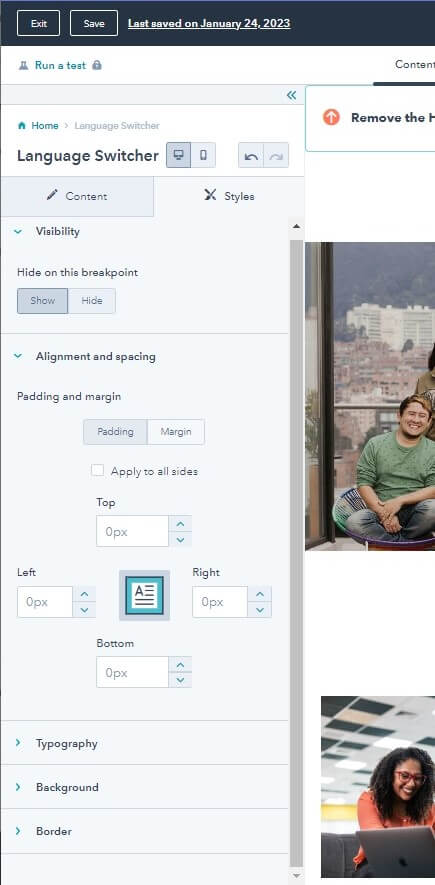
In the sidebar editor, you also have the Styles sub-tab, which allows you to select more design options for the language switcher module. You can choose:
- Visibility
- Alignment and spacing
- Typography
- Background
- Border
- Afterward, click Publish or Update in the upper right to take your changes to live.
It is also recommended to seek support from website developers to ensure your website is multi-language ready. It may require some additional steps that need to be done by specialists to make sure that you offer a flawless customer experience to your clients.