




HubSpot Integration
HubSpot can be easily integrated with any ERP or proprietary system. It has a well-defined and easy-to-understand structure and helps you get around it by offering pre-defined workflows. HubSpot integrations seek a unified solution by delivering a platform that integrates all the processes in one place, assisting companies to stay aware of several different applications dedicated to serving a single purpose.
Looking at the CRM integration, you may start thinking about having all the data in one place. You can do that by migrating all your information to HubSpot.
Microsoft Dynamics 365
According to their website, Microsoft makes Microsoft Dynamics 365 a portfolio of intelligent business applications that delivers superior operational efficiency and breakthrough customer experiences, enabling businesses to become more agile and reduce complexity without increasing costs. This CRM helps companies manage their customer database, engage with customers, solve their issues, generate new leads, and improve customer experience.
Amongst its benefits, we can think that: it's easy to implement and use, it integrates with Microsoft Products, it offers a good customer service experience by collecting a vast amount of data from clients, it has built-in analytics tools, it can be customized having built-in workflow tools and modules, and it is scalable by being able to change your subscription monthly.
Migrating data to HubSpot
After thorough analysis, deliberation, discussions, and brainstorming sessions, you decided to switch your CRM to HubSpot. This may sound like an easy thing to do. To make sure that this process goes smoothly without interrupting your activity, we recommend you follow the next steps:
- Plan your HubSpot migration process.
- Choose your partner in this process.
- Prepare HubSpot for data migration.
- Migrate your data.
-
Plan your HubSpot migration process.
-
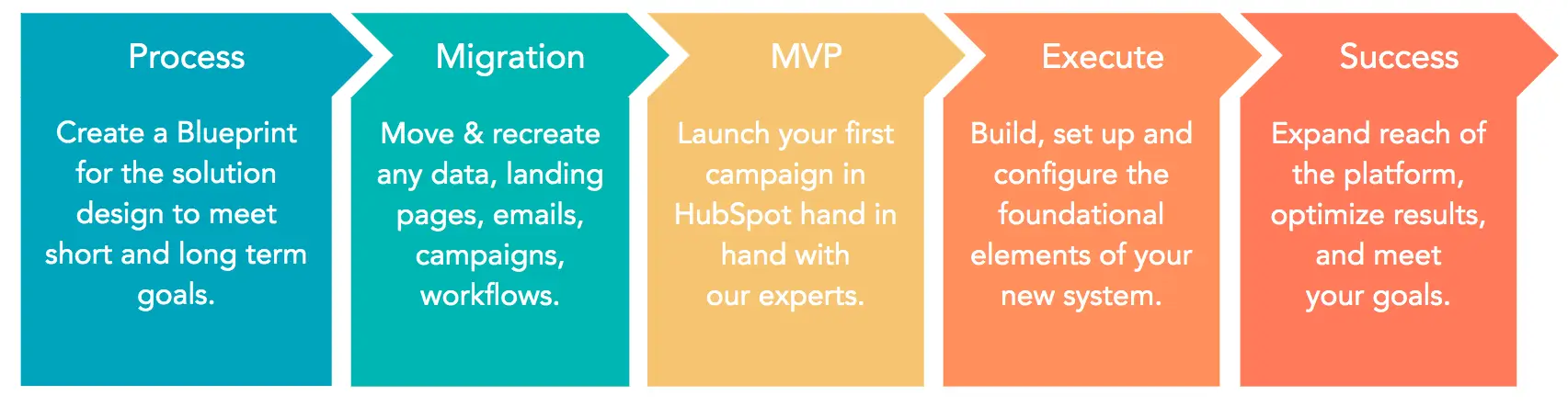
When thinking of moving your data from one CRM to another, you need to consider the five phases of migrating (source):
-
Look at your records and analyze them:
- Which data should be moved to HubSpot? (accounts, contacts, leads, opportunities, etc.)
- What should be the new properties in HubSpot? (for your contacts)
- Can these data be exported into .csv and uploaded, or do you need to build a HubSpot API or a 3rd party integrator help?
-
Analyze your ERP integration:
- Re-define your technical architecture, if possible.
- Connect your critical business applications.
- Use HubSpot's API library to build your integration if we don't have what you need.
-
Define workflows:
- Document automation and workflows as they are.
- Re-think, simplify, and optimize how these should be set up in HubSpot.
- Re-build automation in HubSpot's Workflow tool.
-
Reporting:
- Inventory all active reports in the current tool.
- Define future state reporting needs, consolidating where possible.
- Select out the box reports that meet your needs and modify them if necessary. Build custom reports.
-
When thinking of moving your data from one CRM to another, you need to consider the five phases of migrating (source):
-
Choose your partner in this process.
Look for the people with the abilities you need to have a smooth transition. You can have internal experts or choose a third party to support you with this.
-
HubSpot CSV Import
This option of manually importing data helps you create records and activities and update your database. Import files are spreadsheets containing data you use to organize your business' relationships and processes.
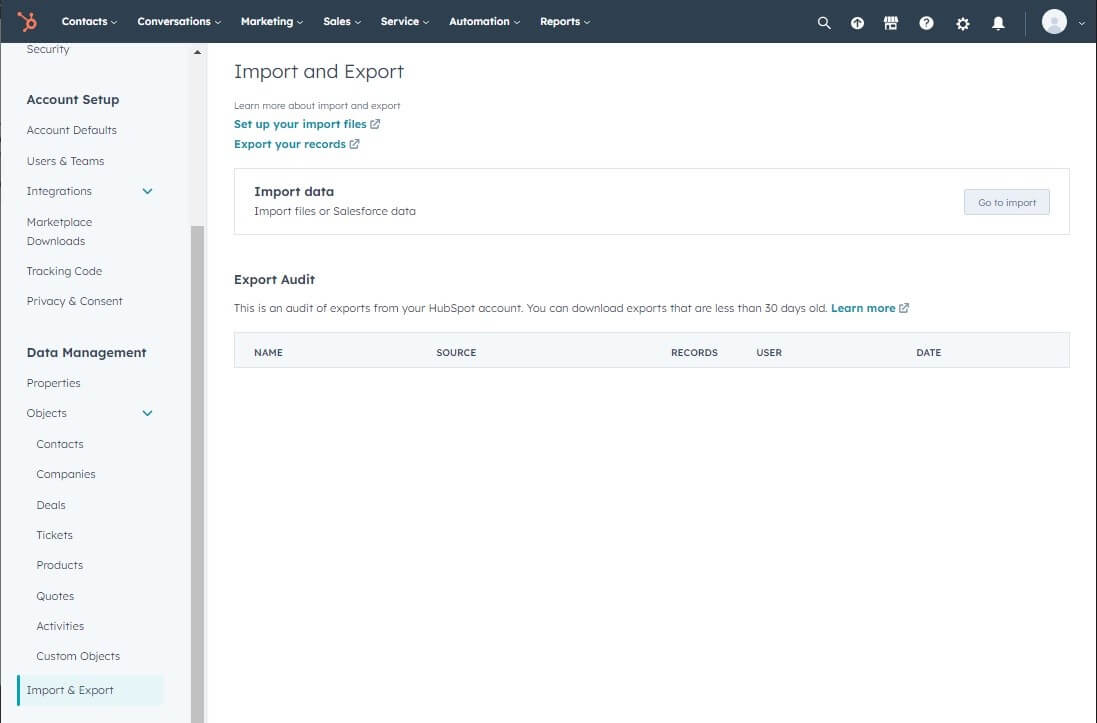
The files you want to import into your HubSpot account, according to the HubSpot website, must:
- Be a .csv, .xlsx, or .xls file.
- Have only one sheet.
- Contain fewer than 1,048,576 rows and 1,000 columns.
- For users with free tools, files must be smaller than 20MB. For accounts with Starter, Professional, or Enterprise subscriptions, files can be up to 512 MB.
- Include a header row in which each column header corresponds to a property in HubSpot.
- Be UTF-8 encoded if foreign language characters are included.
- Contain cells in Number format if you're importing date-time properties in an Excel file.
- Only contain currency data formatted for USD using decimals (e.g., 123.45).
-
Third-party consultant
Going to an external consultant or choosing a third-party service helps you in migrating your data easier in a shorter period. It may require a bigger budget than doing it yourself, but it can save you time and energy in identifying and correcting what went wrong if it is the case.It would be best to decide on this when planning your migration processes.
-
HubSpot API
HubSpot helps you in automating different processes to make your migration smoother and to help you save some time. You must have some technical skills or a dedicated specialist to use this tool.
-
Microsoft Dynamics - HubSpot Integration
Getting started with the HubSpot-Microsoft Dynamics integration is easy and requires no technical work – just a straightforward setup process.
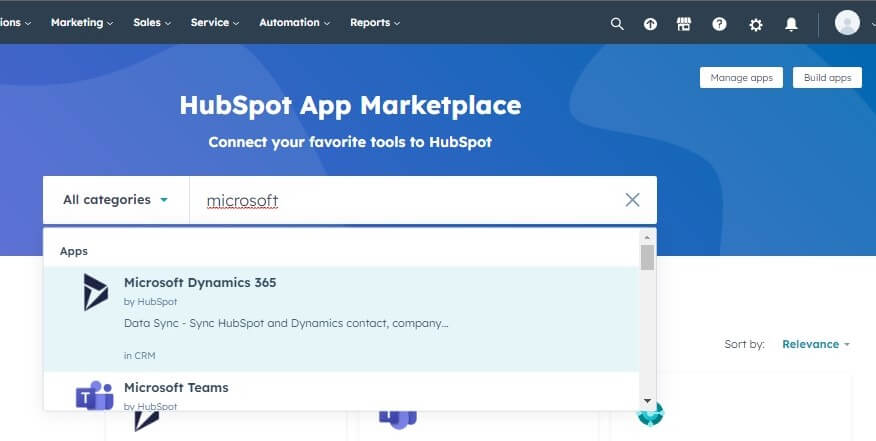
- In your HubSpot account, click the Marketplace icon in the main navigation bar, then select App Marketplace.
-
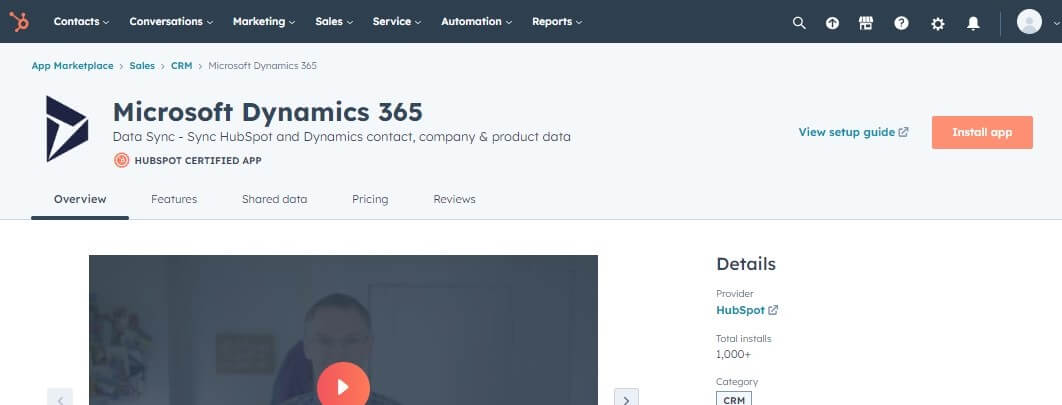
Use the search bar to locate and select Microsoft Dynamics 365.
-
In the upper right, click Install app.
-
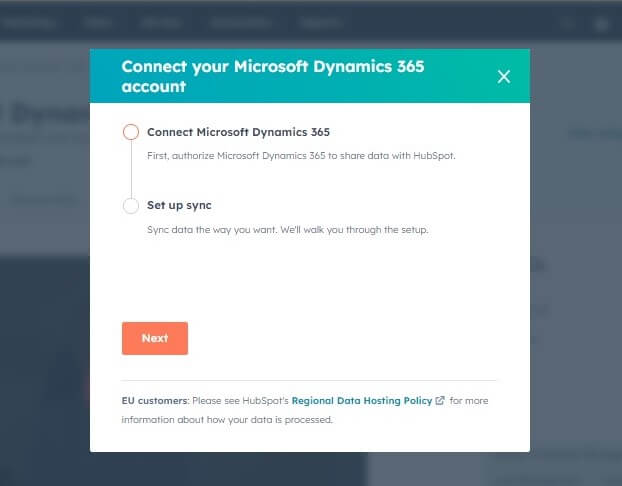
Click the Next button in the pop-up window.
-
Connect your Microsoft Dynamics 365 account.

-
After connecting it, you can configure a one-way or two-way sync for your data.
-
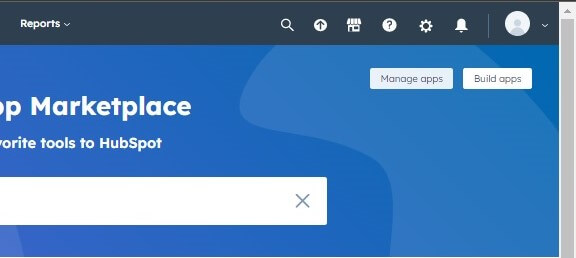
In your HubSpot account, click the Marketplace icon. Under Manage, select Connected apps.
- Click Microsoft Dynamics 365.
- Click Set up your sync.
-
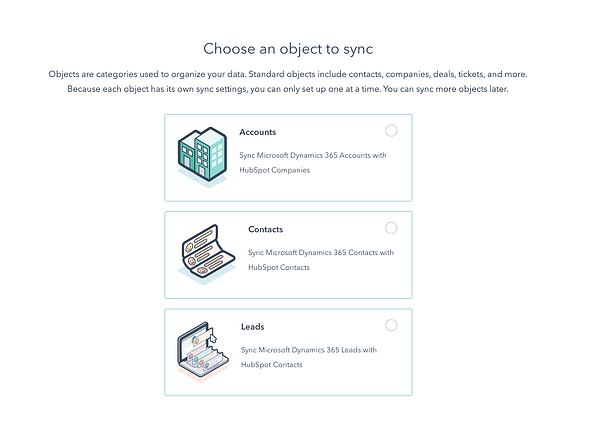
Select the object you want to sync:
- Account: a Microsoft Dynamics 365 account stores data about companies you work with.
- Contact: a Microsoft Dynamics 365 contact is someone you currently do business with or have done business with.
- Lead: a business prospect you have not yet qualified through your sales process.
-
In your HubSpot account, click the Marketplace icon. Under Manage, select Connected apps.
- Click Next.
-
HubSpot CSV Import
-
Prepare HubSpot for data migration.
Check your HubSpot account and see if you have all the fields you need to import all the data. You may have to add more custom fields, add users who will need to access the database, customize page layouts, and turn off any integrations that may be affected by the data imported (this way, you avoid duplicating records).
-
Migrate your data.
Getting started with the HubSpot-Microsoft Dynamics integration is easy and requires no technical work – just a straightforward setup process.
In conclusion, when thinking of changing your CRM, look into it carefully and plan your migrating process in detail. This way, you will be more likely to do without interruptions in your business.