


Business data is often sitting in disconnected software projects and repositories, from email to ERP, CRM, website etc. At the same time nearly every business uses a CRM and interacts with AI like ChatGPT, yet applying AI to your private business data has remained a complex and expensive challenge.
In Fall 2025 HubSpot introduced Data Hub, and in November 2025 Google previewed File Search for the Gemini API. Together, they make unified data and managed RAG really practical for mid-size businesses. This post gives you two concise checklists to test each, then shows how to combine them into a single agent workflow
But before we do that, note that the latter launch generated significant buzz in the industry. Industry developer Robin Ebers captured the sentiment:
Google literally just killed 100s of startups
— Robin Ebers | AI Coding Mentor (@itsbyrobin) November 8, 2025
Their new “File Search Tool” (incredibly dumb and misleading name btw) is a hosted RAG solution that allows you to upload files like DOCX and PDF, and chat with them
This could be used for things like customer chat bots, where you… https://t.co/cYTvvpu8pn
Part 1: Unified Data Foundation with Data Hub
For an intelligent system, you need reliable data from all your sources, even for non-technical users. This is the problem HubSpot’s new Data Hub aims to solve. It moves beyond simple app connections to making the CRM the foundation for everything else.
Key capabilities:
- The Data Studio: A powerful, visual environment where employees can blend data from the HubSpot portal with external sources: tour data warehouses or other business apps to create new unified datasets and reports.
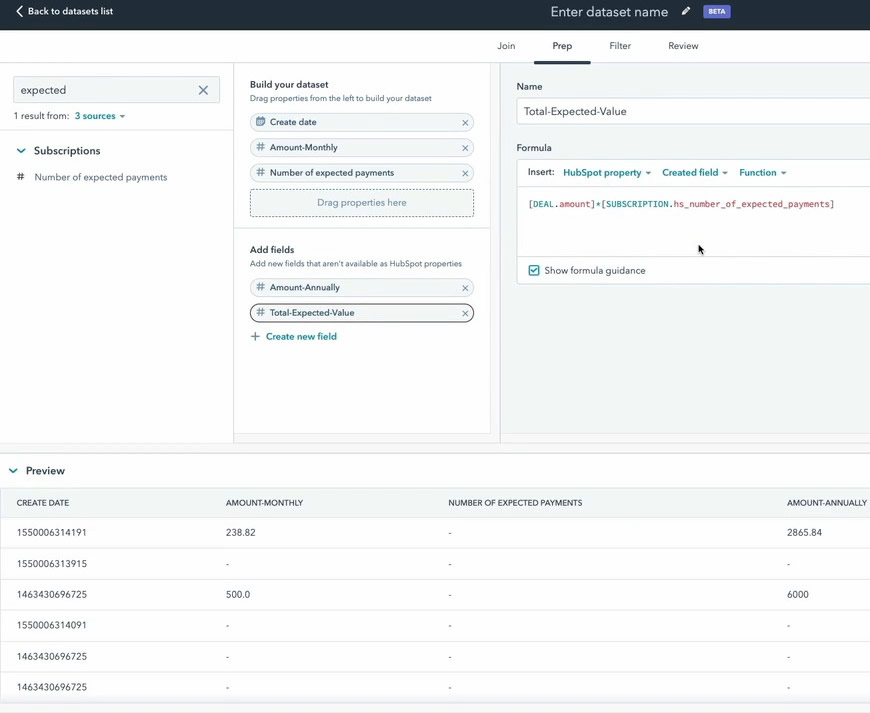
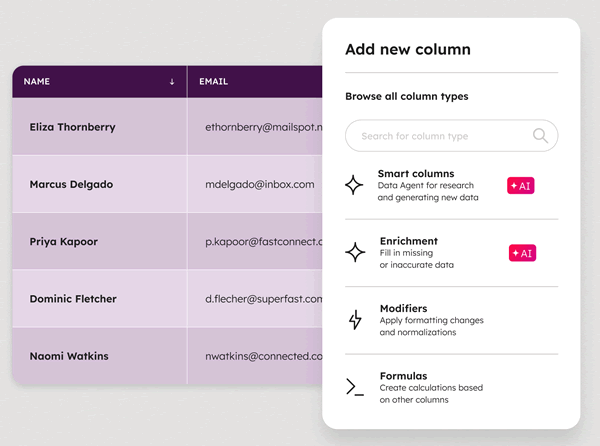
- AI-Powered Data Cleaning: The system now includes AI recommendations to help you format properties, fix inconsistencies, and maintain data hygiene automatically. Also includes bulk duplicate management and data health dashboard.
- Advanced Data Sync and Automation: With features like Reverse ETL, you can not only bring data into HubSpot but also push your clean, unified HubSpot data back out to other critical systems, like your ERP or financial software.Don’t forget the already existing HubSpot - Google BigQuery data integration (read more in OPTI’s previous guide here ➛)
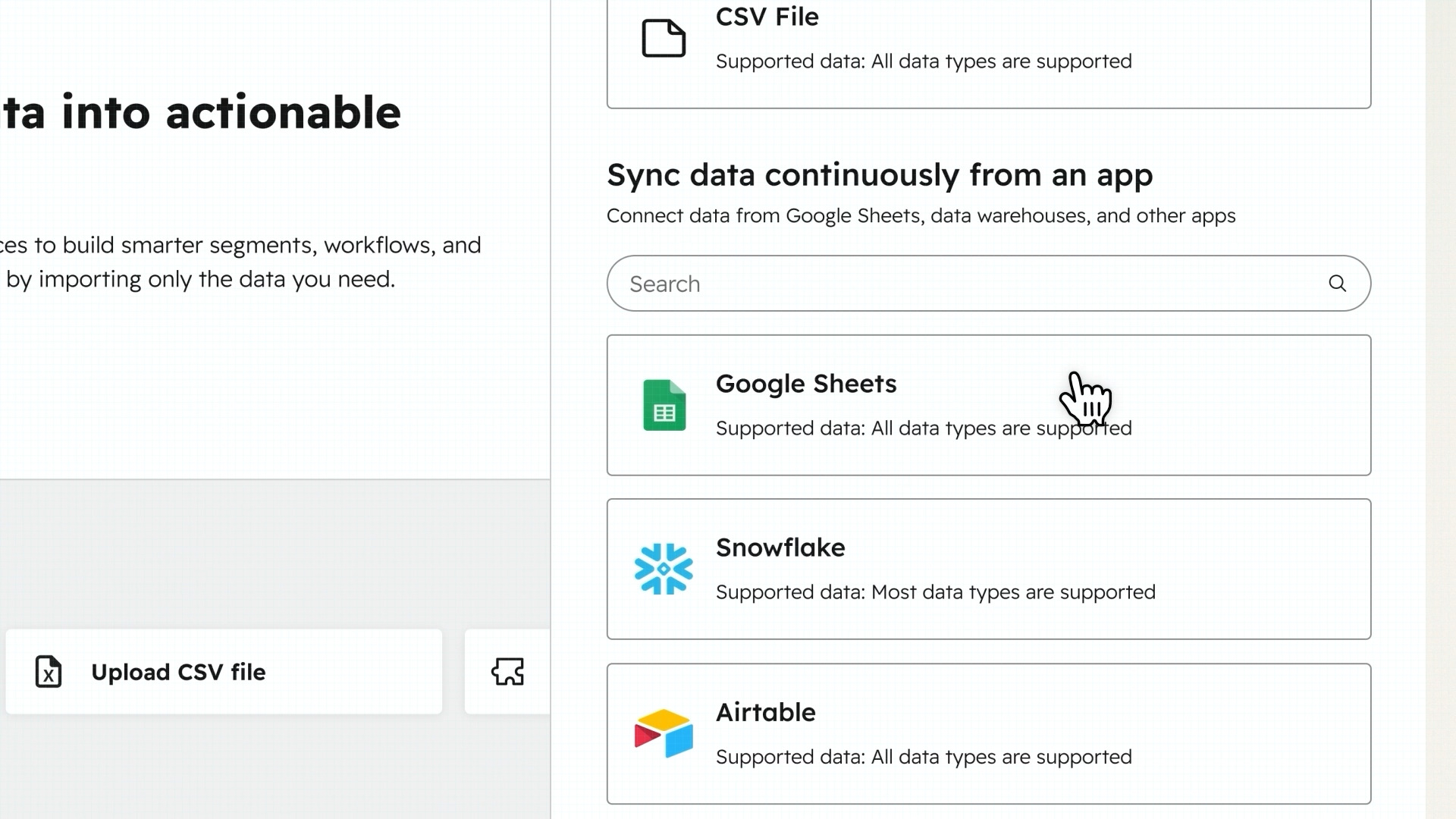
Such tools were usually maintained by internal data teams, yet they now become available as a HubSpot package (in the cloud as SaaS).
As for pricing, as of November 2025, it starts at $700/mo with core seat for the Professional edition or $2000/mo for the Enterprise full edition (including Custom Objects and Data Warehouse integration such as BigQuery)
How-To: First Steps in Data Hub
Here is a four-step approach to begin unifying your data.
Step 1: Audit and Connect Your Key Data Sources
Before you sync anything, map out your data. Ask: Where does our most critical customer data live? This often includes your e-commerce platform (e.g., Shopify), financial software (e.g., NetSuite), and previous CRMs.
- Inside HubSpot, navigate to Settings > Integrations > Connected Apps.
- Use the App Marketplace to find and install the native integrations for your key systems.
- During setup, you will authorize the connection and establish the initial object mappings (e.g., connecting a Shopify Customer to a HubSpot Contact). All these linkages need to be correct to create a data foundation.
Step 2: Perform an Initial Data Clean-Up
Now, focus on the data already in HubSpot. A clean, deduplicated database will be easy to maintain, even by non-technical people.
- Navigate to Contacts and use the Actions > Merge Duplicates feature. HubSpot’s AI will suggest potential duplicates based on email, name, and company domain.
- Create an "Active List" of contacts with formatting issues, such as First Name contains all-caps letters or Phone Number does not conform to a standard format.
- Use HubSpot Workflows to standardize these properties. For example, create a workflow that triggers when a contact is added to your "cleanup list" and uses the "Format Data" action to change text to "Title Case" or properly format a date.
Step 3: Create Your First Two-Way Sync
The power of the new Data Hub is in bi-directional syncing. A place to start is with your sales or support team's primary tool.
- Go to the settings for your connected app (e.g., Salesforce or another CRM).
- Set up a new sync rule. Define the trigger and the action. For instance: "When a Contact's lifecycle stage is updated to Customer in HubSpot, update the corresponding record in the other system."
- Crucially, set up a rule going the other way: "When a deal is marked Closed Won in our sales tool, update the associated Deal record in HubSpot and enroll the contact in our 'New Customer Onboarding' workflow." This creates a living connection, ensuring consistency.
Step 4: Build a New View with the Data Studio
This is where the magic of Data Hub will happen, in letting you query datasets without technical knowledge. Let's create a report that joins marketing engagement with sales outcomes.
- Navigate to Data Management > Data Studio.
- Click "Create dataset."
- As your primary source, select Contacts. As a secondary source, select Deals.
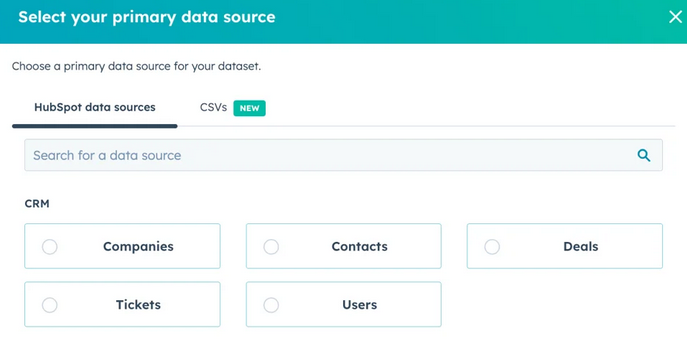
Figure 4: HubSpot will keep all your primary and secondary datasets and can join them on request.
- Join them based on the Associated Deal ID. Now add another source: your advertising platform data, which you've synced into HubSpot as e.g. custom objects. Join this data on the contact's email address.
- You can now build a report that visualizes which ad campaigns brought in leads that eventually turned into the highest-value deals - a single view that was previously impossible without a data analyst.
As HubSpot themselves put it:
“When we say HubSpot unifies data, we mean all business data. It's designed for teams who are tired of manual exports, broken integrations, and data that never seems to match up.”
Learn more about the new capabilities on the HubSpot official blog ➛
Part 2: Grounded Intelligence with Gemini File Search
Google File Search is a managed Retrieval-Augmented Generation (RAG) system. In plain English, you can upload your documents: product manuals, support knowledge bases, case studies, HR policies, or financial reports to the Gemini API. Then you ask Gemini questions about them in natural language, and the AI will respect the documents you added.
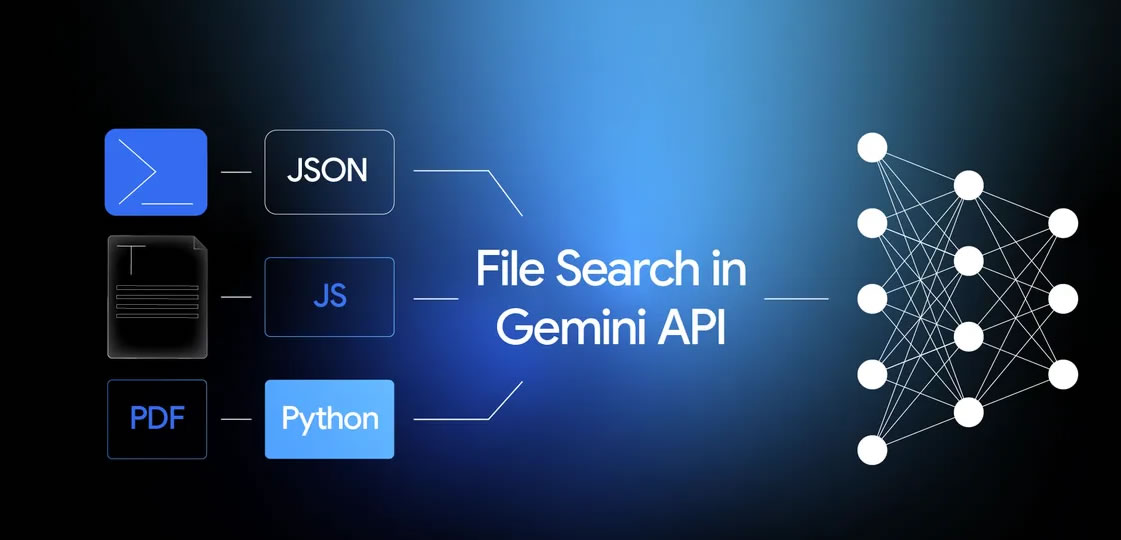
The only programming involved is your connection to upload files and ask questions to Gemini, as we see below.
Status (November 2025): File Search is a public preview feature of the Gemini API. You upload files via the Files API, then add them to a store (a persistent, searchable container for your documents), and query with a model configured with the File Search tool.
File Search unlocks:
- Democratized RAG at a low price: Instead of significant investment in vector databases for RAG, simple API calls signify a predictable scalable cost.
- Internal Expertise: Build chatbots that can answer highly specific questions for your employees, like "What are the protocols of an audit according to our compliance docs?"
- Accuracy: Every answer the AI generates includes citation metadata that links back to the exact source document and passage, so as to allow verification. You can display them in your frontend app using a little programming.
To preview the next section, see this diagram we created for how a full File Search centric business would look like:
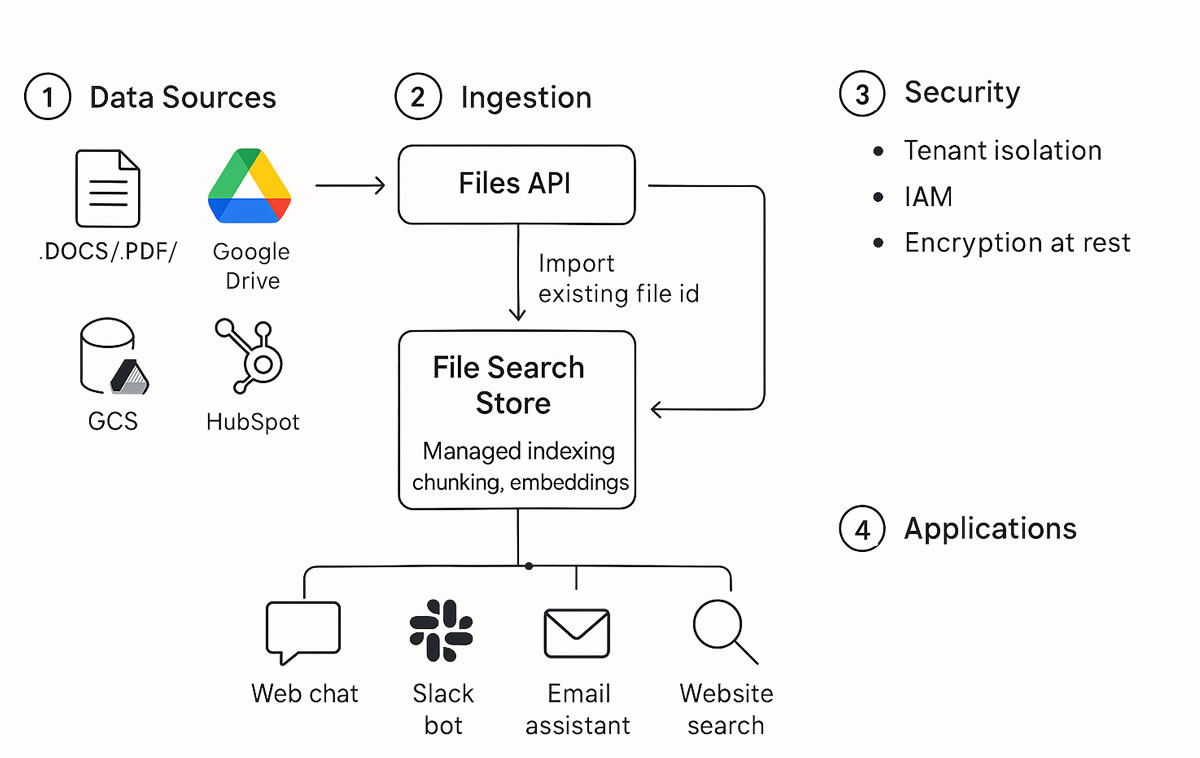
As for pricing, public preview (November 2025) posts note $0.15/1M tokens for the initial indexing of your files in Gemini, with storage and subsequent generation currently free. Remember, a good rule of thumb is that 1 token is about 4 characters.
How-To: First steps with File Search API
The process below is developer-oriented (at least for the moment), but it connects in just four steps your whole document trove to a powerful AI.
Step 1: Get Your API Key and Set Up Environment
- Go to Google AI Studio (ai.google.dev).
- On the left-hand menu, click Get API Key and then Create API key in new project. Save this key securely.
- Ensure you have Python installed on your machine. Then, install the necessary Google library by running this command in your terminal:
pip install -q google-generativeai
Step 2: Upload Your First Set of Documents
This is the core of indexing your knowledge. Let's say you have a folder with three PDF documents: product_specs.pdf, support_faq.pdf, and report_draft.pdf.
Create a Python script and add the following code. This will upload each file and store its API resource names.
from google import genai
from google.genai import types
import time

client = genai.Client()

# 1) Create a File Search Store (persistent container)
store = client.file_search_stores.create(config={'display_name': 'my-reports-store'})

# 2) Upload + import a file into the store (name will show up in citations)
op = client.file_search_stores.upload_to_file_search_store(
    file="report_draft.pdf",
    file_search_store_name=store.name,
    config={'display_name': 'My Report Draft v1'}
)
Step 3: Wait for Processing
# 3) Wait for indexing to finish (poll)
while not op.done:
    time.sleep(1)
    op = client.operations.get(op)
Advanced customization: The API also supports chunking (upload in parts) and parallel uploads
Step 4: Ask a Question and Get the Response and Citations
Now you can query your knowledge base.
# 4) Ask the model via File Search against the created store
resp = client.models.generate_content(
    model="gemini-2.5-flash",
    contents="Summarize the key claims and list 3 sources to verify.",
    config=types.GenerateContentConfig(
        tools=[types.Tool(
            file_search=types.FileSearch(
                file_search_store_names=[store.name]
            )
        )]
    )
)

print(resp.text)

# Optional: access citation metadata / grounding data to render visually
print(resp.candidates[0].grounding_metadata)
Security considerations:
- The API also supports tagging your documents so to query only those documents tagged in a specific matter.
- You can use these tags to isolate documents by subject matter or department.
- You can also use tenant-isolated separate File Search Stores for maximum isolation.
- Don’t forget to use least-privilege API keys and log everything.
Practical Outputs of File Search:
- Natural language questions and answers
- Grounding is verifiably in private documents you can isolate by tag (for security)
- Supports PDF, JSON, TXT AND DOCX (Microsoft Word)
All at a low cost, that of the initial indexing of documents (as of November 2025)
Explore the official technical details on the Google Developers Blog ➛
Read our in-depth case study on using GenAI for financial analysis ➛
Part 3: The Synergy - Integrate Both via Agents
Why integrate?
A clean HubSpot Data Hub can become your single source of truth. Google's File Search can become your instant expert on company documents. But a huge advantage could come from making them speak to each other in real-time.
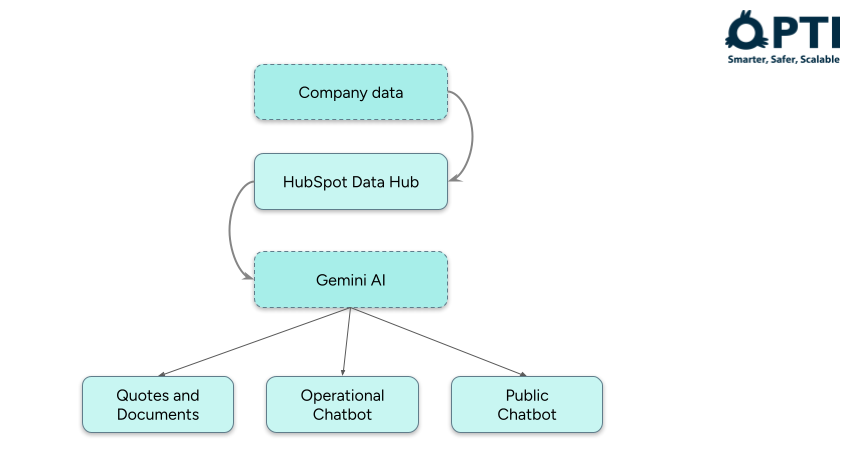
As we've detailed, Gemini's File Search queries a static set of documents. Your CRM HubSpot data is live and dynamic. Building the bridge between them requires a custom AI Agent. This is an intelligent orchestrator that knows which tool to use for which question.
This is where an integrator comes in, such as OPTI. See our case studies for building such systems and revisit this diagram. We create the connections:
Concrete example
Instead of spending an hour digging through spreadsheets, emails, and the CRM, imagine a sales executive preparing for a major client call. They open an internal chatbot custom built for them.
They ask: "Give me a one-page summary on Client XYZ, including their current MRR, the status of their last support ticket, and any relevant case studies we have for their industry."
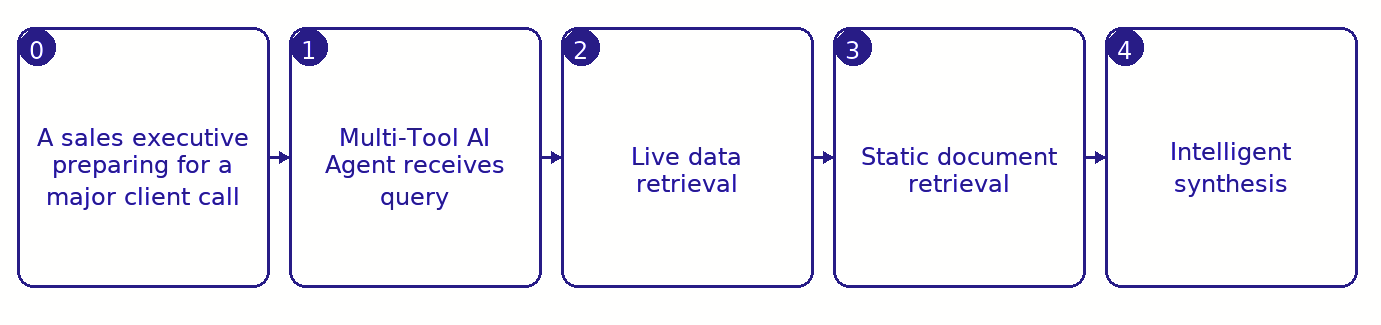
Here's what happens:
- The Sales Executive wants to prepare for a call. They open a chat window.
- Multi-Tool AI Agent receives the query. The custom-built AI agent parses the request into three distinct tasks.
- Live Data Retrieval. The agent calls a custom HubSpot Connector for MRR and ticket status of the client.
- Static Document Retrieval: For the case studies, the agent queries the File Search tool for relevant case studies you've uploaded (with citations).
- Intelligent Synthesis. The agent using Gemini synthesizes the information and composes a full data-aware brief, with citations pointing back to the source.
In conclusion, tech is changing for mid-sized businesses:
- With HubSpot’s Data Hub, you build a reliable foundation: a single source of truth in your CRM cloud.
- With Google’s File Search, you layer on any static collection of documents a powerful intelligence engine.
If you want to use both, connecting these two new worlds in a secure manner via agents will result in a truly intelligent business.
As a HubSpot Solution Partner and Google Cloud Partner (ISO 27001/9001 certified), OPTI designs secure connections and integrations for software. Including our AI Sales platform.
Let’s have a chat about your implementation of this guide.